Group Grid Tool - Manual User Value
A User Value Column can be added to the grid. The value in this column can be populated via script, and can be edited in runtime.
To Configure a Manual User Value Column
- In Edit mode open the OCXProperties on the ActiveX page in the grid object’s Property Sheet.
- Select the Columns page.
- Click New.
- Set the Label property to UserValue.
- Set the Point Selection Item to User Value, under the Current Value items drop-down menu.
- Define additional column properties as desired. See Column Configuration for description of the other properties.
- Click OK to save the column properties.
- Click OK to save the changes to the grid.
- Save the CygNet Studio file.
|
Group Grid Tool — Enter User Value |
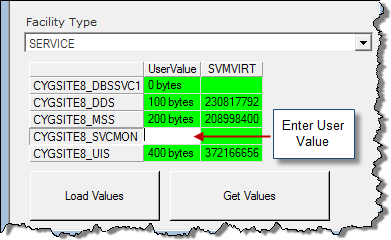
Double-click on the UserValue column to edit or change the default value. In the example above the Load Values button would save the values to the screen.
The following script examples use CygNet Studio buttons to Load values to a column.
To Load Values use a "Button" and put scripting under Properties – Event – Eventclick. The following is an example script:
Dim row, rowCount
rowCount = GroupGridTool1.X.GetRows
For row = 0 To rowCount -1
GroupGridTool1.X.SetCellValue 0, row, CStr( row * 100)
NextTo Get Values use a "Button" and put scripting under Properties – Event – Eventclick. The following is an example script:
Dim row, rowCount
Dim strValue
Dim strAllValues
rowCount = GroupGridTool1.X.GetRows
For row = 0 To rowCount -1
strValue = CStr(GroupGridTool1.X.GetCellValue( 1, row ))
If( row > 0 )Then
strAllValues = strAllValues + ", "
End If
strAllValues = strAllValues + CStr(row) + "=" + strValue
Next
Exporting Grid Data
In Run mode, a user can right-click in the top, left cell of the grid and select to export the data to Microsoft Excel. All of the data in the grid will be exported.
Printing Grid Data
In Run mode, a user can right-click in the top, left cell of the grid and select to print the grid.
You can configure the header and footer text for the report using the PageFooter and PageHeader properties on the ActiveX page in the grid object’s Property Sheet. The text can be static, tokens, or a combination of both. For example, Page %page% will print out as Page 1, Page 2, etc. An alignment token (%left%, %center%, %right%) must be listed to the left of the text to which it applies. To use a literal percent sign, enter two in succession (%%).
See Page Setup for more information.
Valid tokens are listed in the table below.
| Item | Token |
|---|---|
|
CygNet User ID |
%userid% |
|
Current Date |
%date% |
|
Current Time |
%time% |
|
Current Page |
%page% |
|
Page Count |
%pages% |
|
Align Left |
%left% |
|
Align Center |
%center% |
|
Align Right |
%right% |


